
Zoom bombing is when someone joins a Zoom meeting they were not meant to be in and causes disruption. That could be shouting, posting in the chat, or sharing inappropriate content.
For a business, it can waste time, cause reputational damage, and let the wrong people into the meeting. The fix is simple. Set the meeting up properly before it starts and be careful where you share the joining details, as attackers may search public listings such as Eventbrite for easy access.
How to stop Zoom Bombing
The Waiting Room stops people going straight into the meeting. The host can then choose who to let in — individually or all at once.
- Open Zoom in your browser
- Go to Account Management
- Click on Account Settings
- Find Waiting Room
- Turn it On
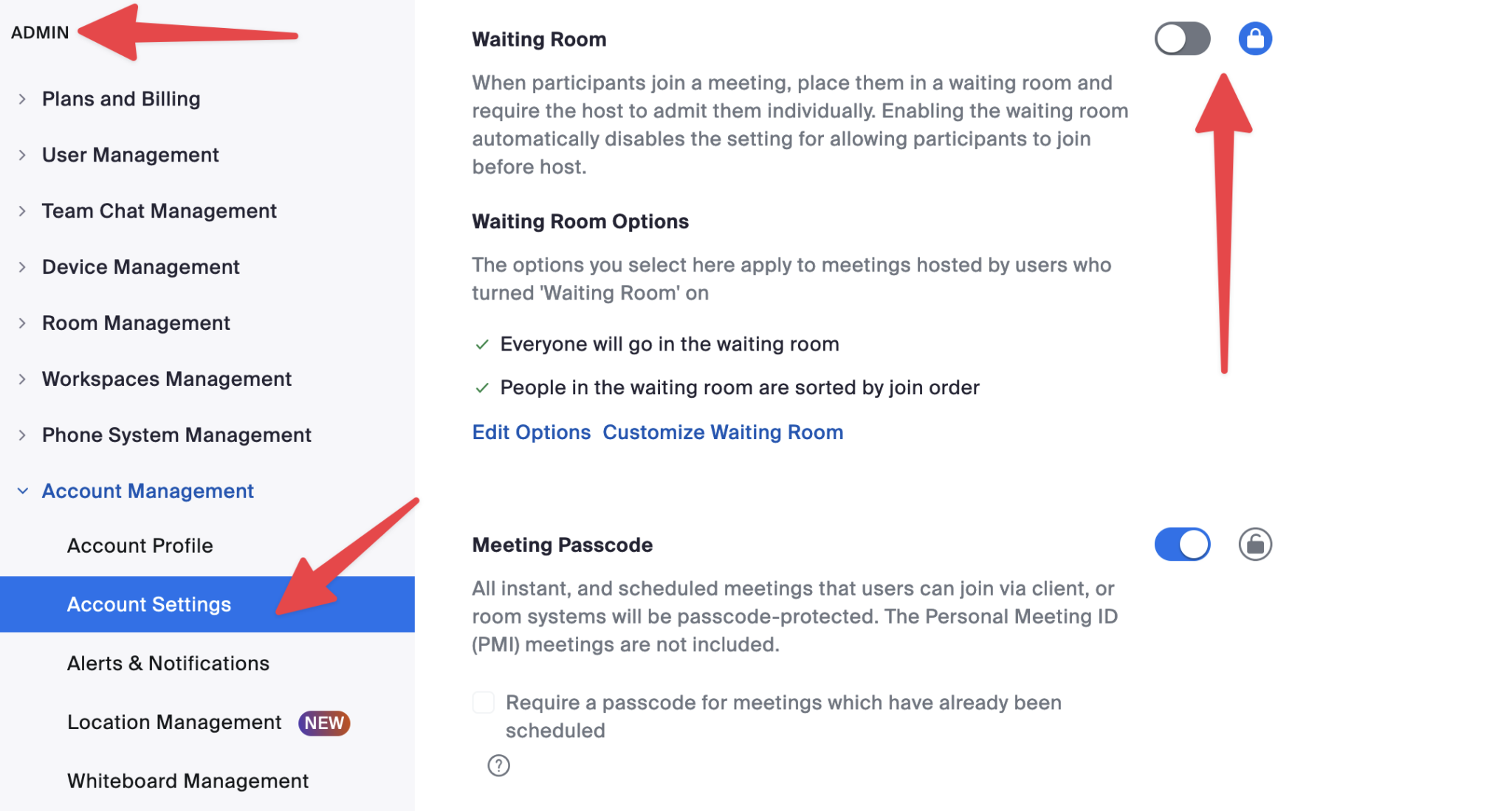
Why it mattersThis gives you control over who actually enters the meeting.
A password adds another layer of protection. If a meeting link gets forwarded, there is still another barrier in the way.
- When creating or editing a meeting, look for Password
- Make sure it is turned On
- Share the meeting details only with the people who need them
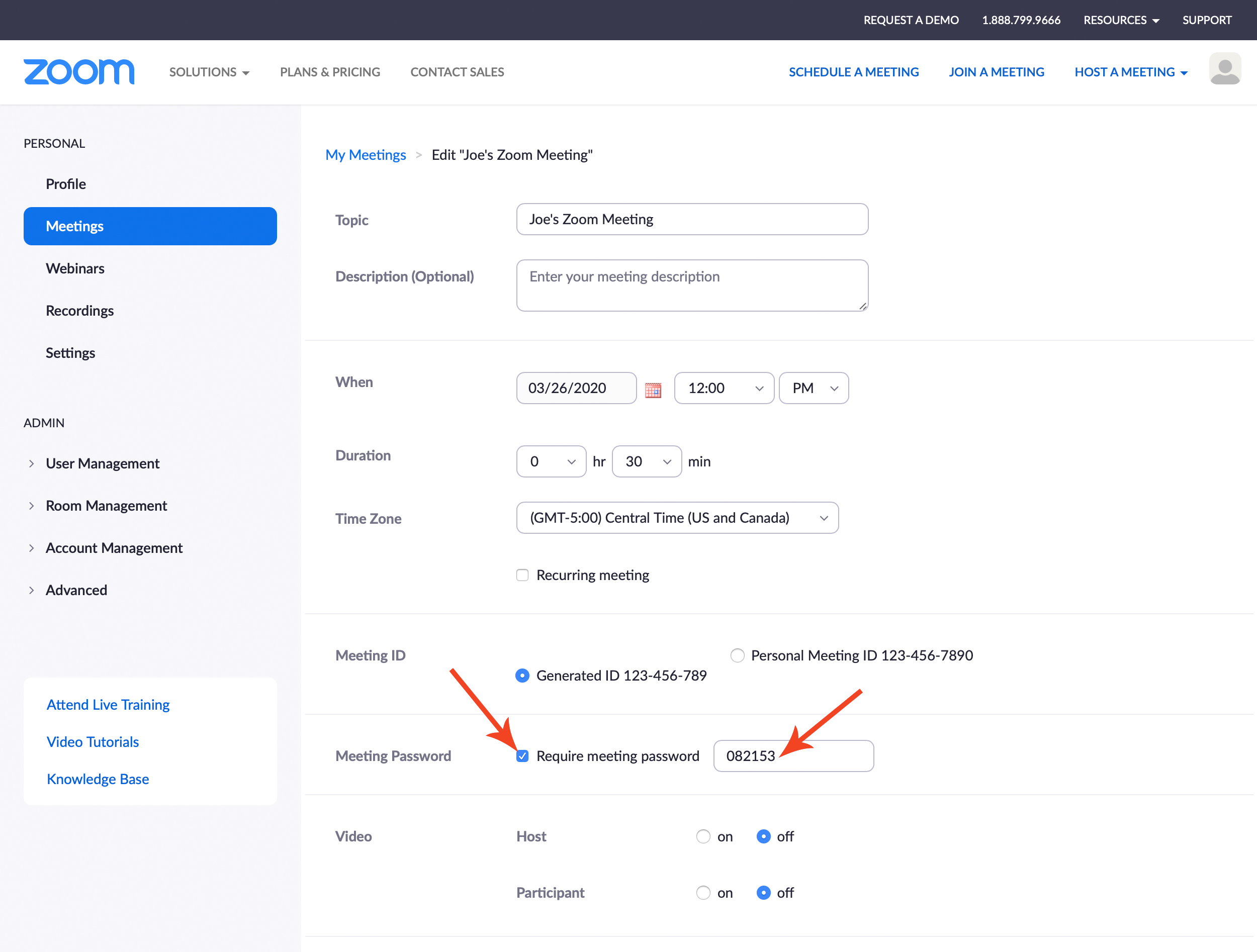
Why it mattersIf a meeting link gets forwarded, there is still another barrier in the way.
If people can join before the host, you lose control before the meeting has even started.
- When scheduling or editing the meeting, find Join before host
- Make sure it is Unticked or Off
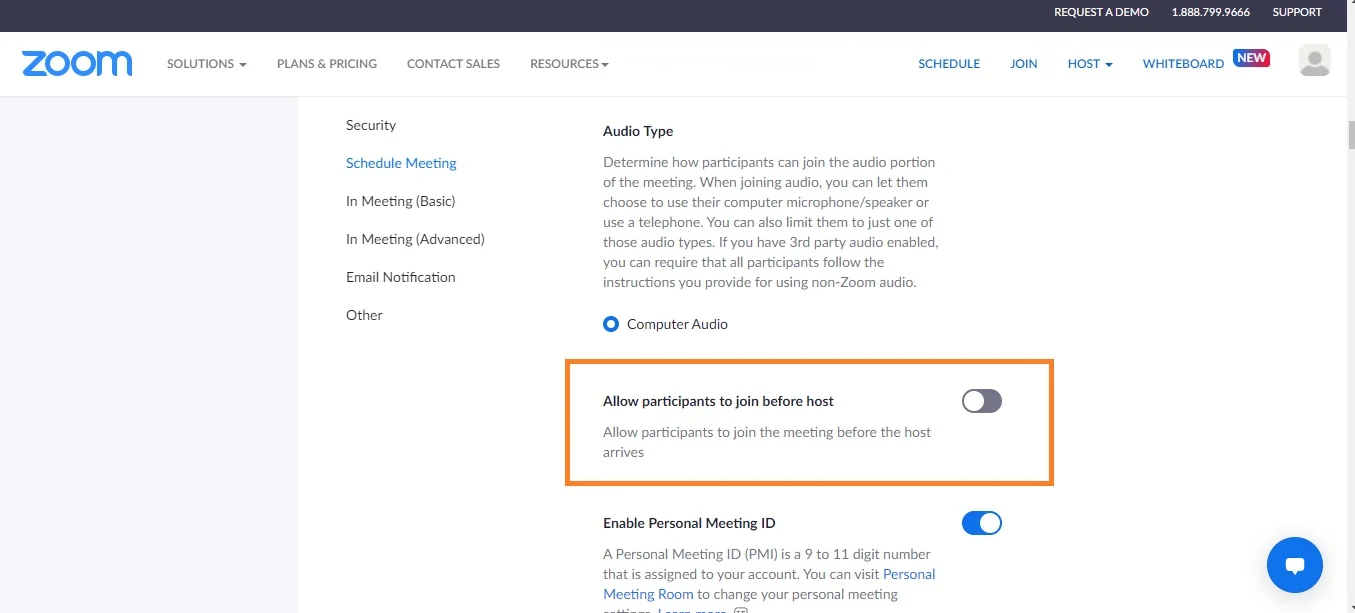
Why it mattersIt stops people getting into the meeting before anyone is there to manage it.
One of the fastest ways a meeting can go wrong is when the wrong person can share their screen.
- Open the meeting controls
- Go to the screen sharing settings
- Set sharing to Host Only
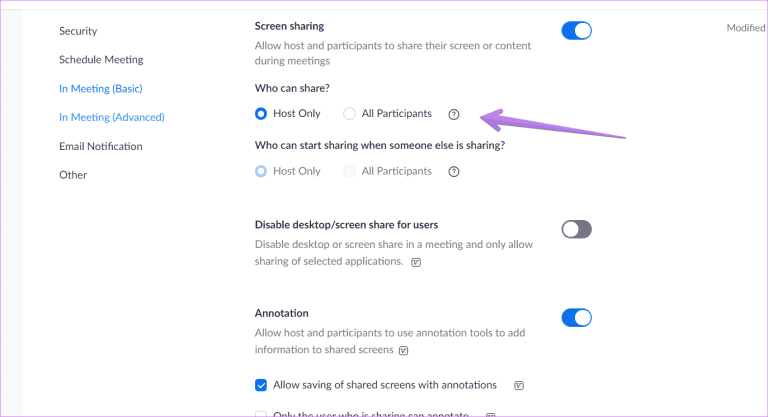
Why it mattersIt stops uninvited guests or disruptive attendees putting content in front of everyone.
Once all expected attendees are in, lock the meeting. This stops any more people joining after that point.
- Start the meeting
- Once everyone has joined, click Security or Host tools
- Click Lock Meeting
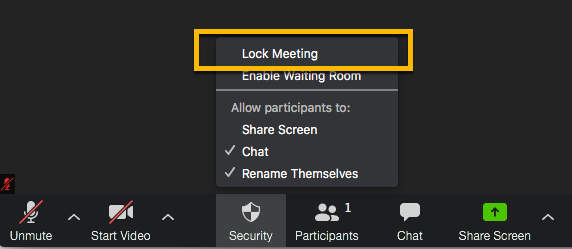
Why it mattersIt closes the door behind the people you invited.
If someone gets in who should not be there, remove them straight away. You can also prevent removed participants from rejoining.
- Open Security
- Click Remove Participant
- Choose the participant you wish to remove
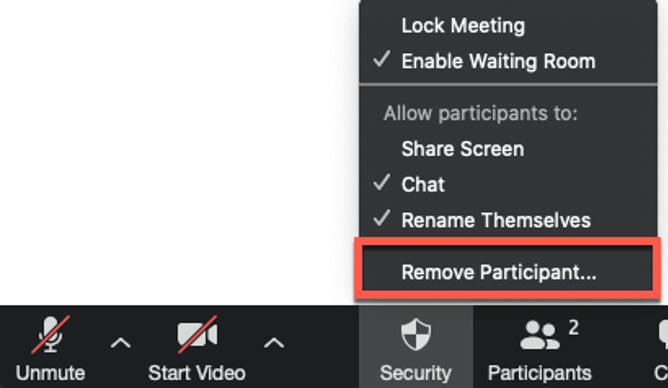
Why it mattersIt deals with the problem fast and helps stop the disruption getting worse.
For stricter meetings, Zoom allows you to limit attendance to authenticated users only — meaning attendees must sign in before joining.
- Go to Settings
- Open the Meeting tab
- Find Only authenticated users can join meetings
- Turn it On if it suits the meeting
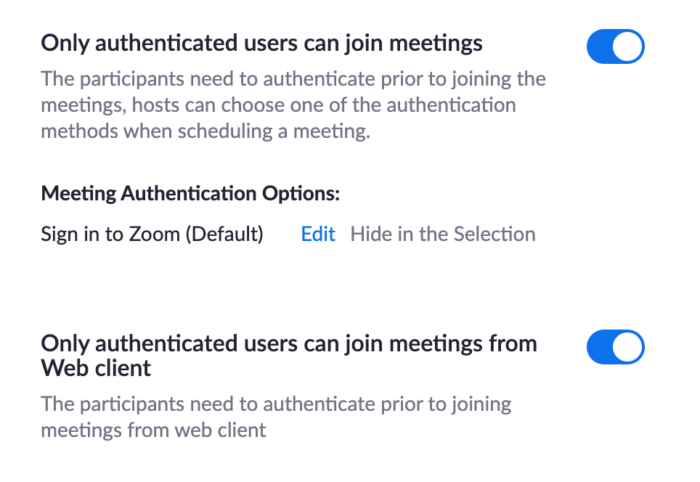
Why it mattersAdds another control for internal meetings, management meetings, or sessions where you want extra access control.
If something does go wrong, Zoom's Security controls help you respond quickly from one place.
- During the meeting, click Security
- Use the controls to lock the meeting, remove a participant, or move someone to the Waiting Room
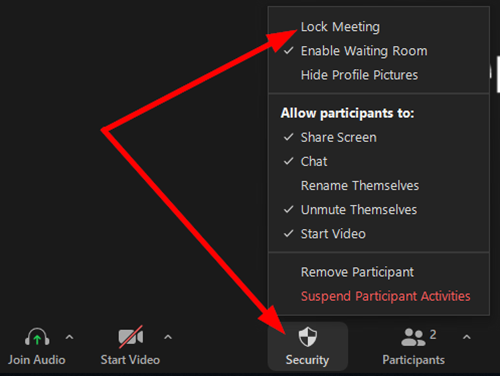
Why it mattersIt gives the host one place to take control quickly when things go wrong.
If you want the short version, do these five things every time:
- Turn on Waiting Room
- Add a Passcode
- Turn off Join before host
- Set screen sharing to Host Only
- Lock the meeting once everyone has joined
That will make your Zoom meetings much harder to disrupt.